
Steps in 3PDF
Open the PDF and its page panel
Open the document in 3PDF and display the Pages panel on the left. Locate the thumbnails you need. A page’s position in the file can differ from the number printed on it, so check the content as well.
Select the pages
Select one thumbnail or several pages. Check the selection before dragging it. Multiple selection and Ctrl+A are available in the page organizer when you need to select the whole document.
Drag the selection into a folder
Open your destination folder in Windows File Explorer next to 3PDF. Drag the selected thumbnails into that folder. Open the new PDF and check that it contains the right pages before sharing it.
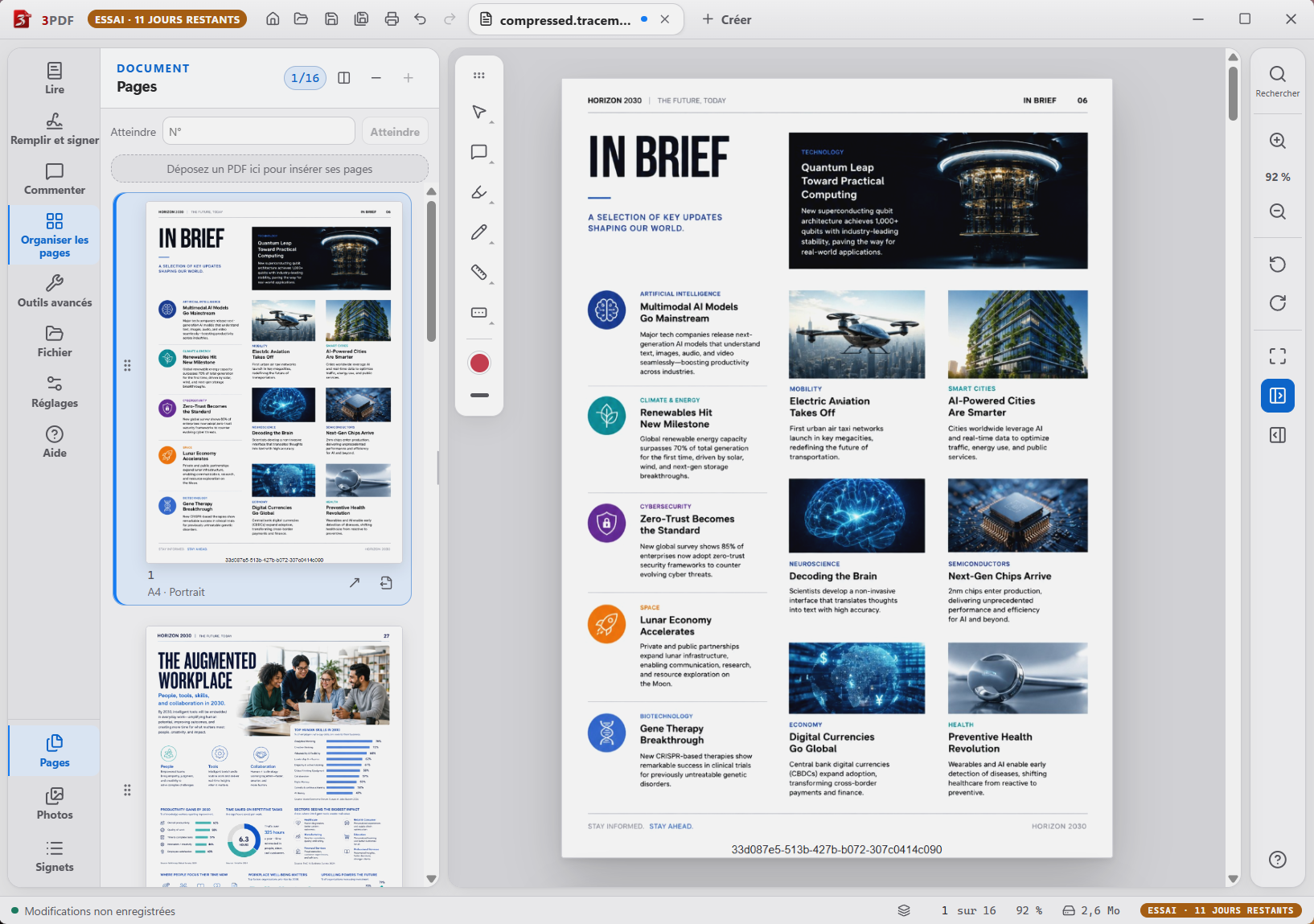
The result and what to check
This operation takes place in the installed Windows application. There is no document upload to a website. Extraction creates a separate file; it is not a command to delete the pages from the source document.
Can I combine pages from different PDFs?
Yes. Organize the documents and their pages in 3PDF first, then export the selection or assembled document. The merging guide explains how to prepare it.
This feature is part of 3PDF Pro
The reader is free, with no account. Pro tools cost €3.99 / month, for two computers per account. PDF processing stays local; your account, payment and access renewal use the Internet.
You can subscribe during your trial. The paid monthly period starts at payment. Cancellation takes effect at the end of the period already paid for.