
Steps in 3PDF
Collect the documents
Prepare the PDFs to combine and open 3PDF’s page organizer. Drop in the files. Identify the beginning and end of each document so the combined file has a clear structure.
Arrange the pages
Move a page, a selection or a block of pages. Insert another PDF between two pages at the position you choose. Rotate pages that face the wrong way and remove unnecessary duplicates.
Export and check
Export the assembled document as a new PDF. Open it and check the page count, appendix order and legibility. Keep the source files so you can prepare another version later.
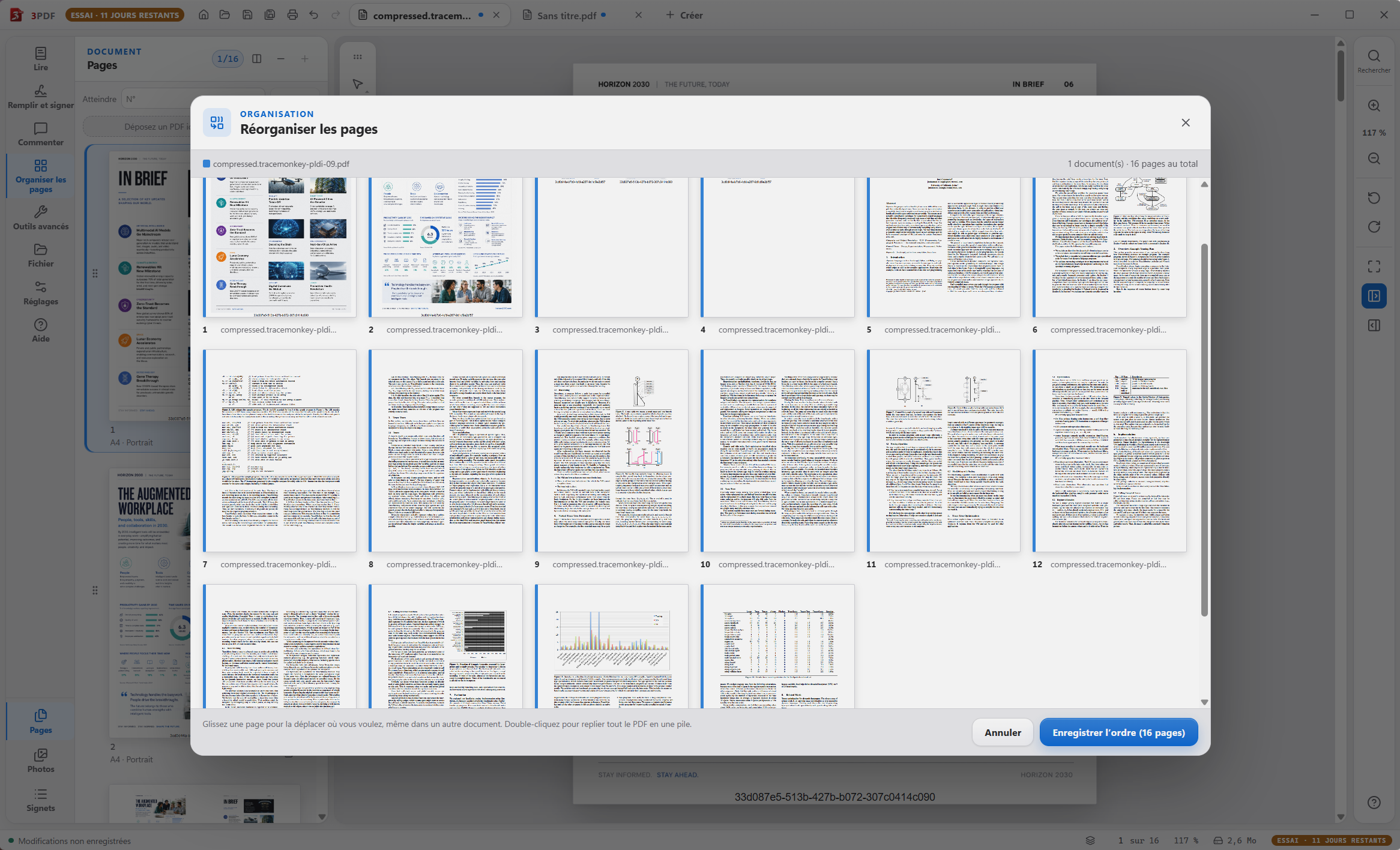
The result and what to check
Assembly runs on your computer. Merging pages is not a substitute for checking forms or signatures present in the original documents. Review the important elements in the final PDF.
Can I extract an appendix after merging?
Select its pages in the assembled document and drag them into a Windows folder to create a separate PDF.
This feature is part of 3PDF Pro
The reader is free, with no account. Pro tools cost €3.99 / month, for two computers per account. PDF processing stays local; your account, payment and access renewal use the Internet.
You can subscribe during your trial. The paid monthly period starts at payment. Cancellation takes effect at the end of the period already paid for.