
Steps in 3PDF
Prepare the signature image
Use a clear image of your own signature with enough contrast. Avoid shadows and unrelated marks around the strokes, which can make background removal less effective.
Import it into the signature panel
Open 3PDF’s signature tools and import the image. Check the background removal result. The strokes should remain legible, including when placed over a colored area of the document.
Place the signature and save
Insert the signature in the intended position and adjust its size. Check that it does not cover important text. Save a copy of the PDF and reopen it before sending.
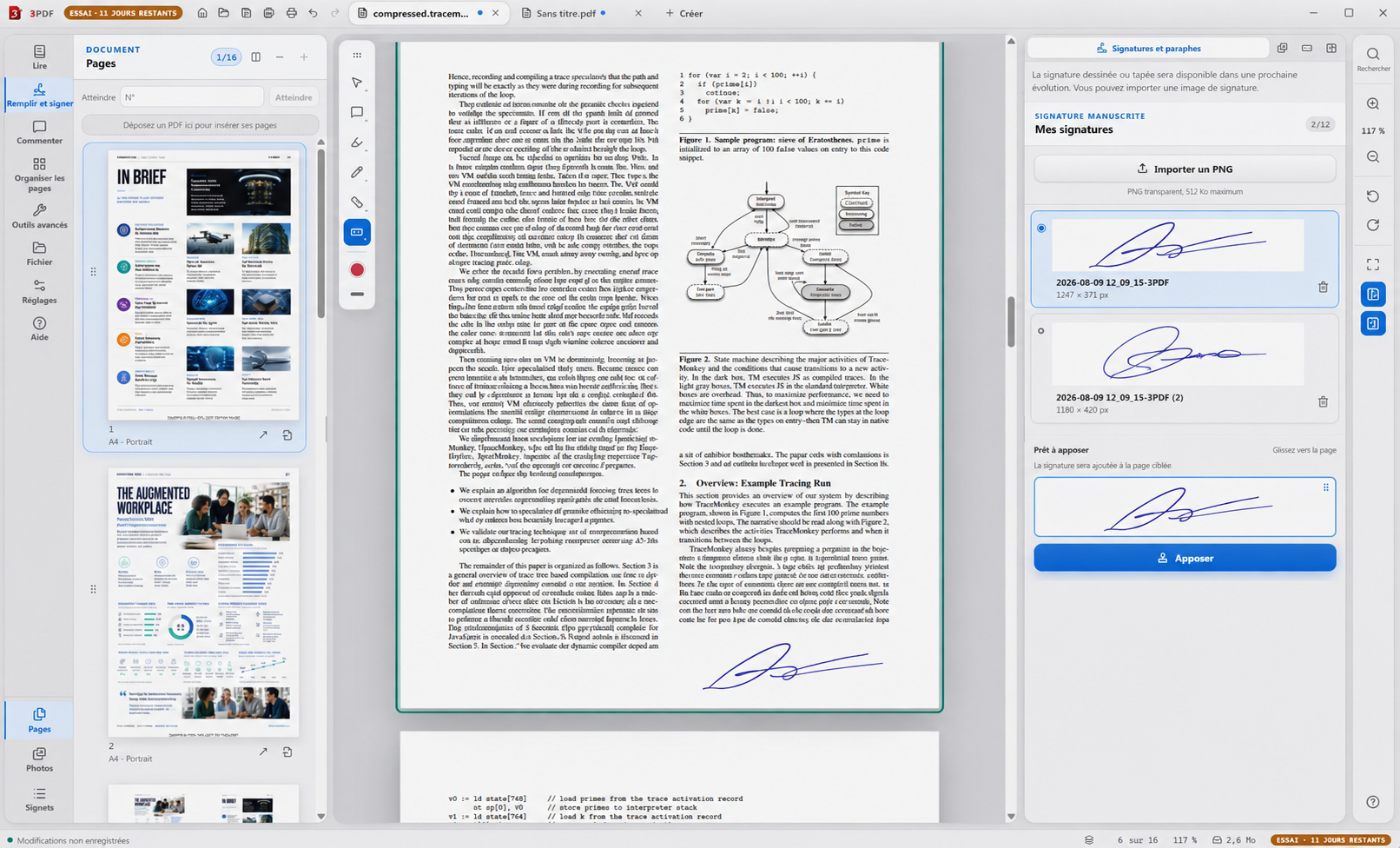
The result and what to check
The screenshot shows the actual application’s signature panel. This feature adds a visual signature. It does not encrypt the document or certify the signer’s identity or file integrity.
Does 3PDF provide certified cryptographic signatures?
No. If your process requires a certificate, identity verification or a particular signing service, use the solution required by that process.
This feature is part of 3PDF Pro
The reader is free, with no account. Pro tools cost €3.99 / month, for two computers per account. PDF processing stays local; your account, payment and access renewal use the Internet.
You can subscribe during your trial. The paid monthly period starts at payment. Cancellation takes effect at the end of the period already paid for.